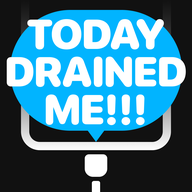
1. Custom charging sound
Make your iPhone play any sound when you plug in the charger — a fart, a meme, a movie quote, anything. This is one of the most popular phone personalization trends, with millions of TikTok videos showing off creative charging sounds.
How: Use Vocalcord for a 15-second setup with 85+ built-in sounds, or create a Shortcuts automation manually. See our complete charging sound guide.
2. Custom Lock Screen with depth effect
iOS lets you create layered Lock Screens where your photo's subject appears in front of the clock. It works with portraits, pets, landscapes, and more — iOS automatically detects the subject and creates the depth effect.
How: Long-press your Lock Screen → tap + → choose a photo. iOS applies the depth effect automatically if the photo supports it.
3. Lock Screen widgets
Add small, glanceable widgets to your Lock Screen — weather, battery percentage, calendar events, fitness rings, reminders, and hundreds more from third-party apps.
How: Long-press your Lock Screen → Customize → tap the widget area below the clock to add widgets.
4. Multiple Lock Screens
You can create multiple Lock Screens and switch between them — each with different wallpapers, widgets, and clock styles. Even better, you can link them to Focus modes so your Lock Screen changes automatically.
How: Long-press your Lock Screen → swipe left → tap + to create additional Lock Screens. Link to Focus modes in the Lock Screen gallery.
5. Tinted app icons
iOS 18 introduced the ability to tint all your home screen icons with a custom color. You can make everything monochrome, match your wallpaper, or go full dark mode.
How: Long-press the home screen → tap Edit in the top-left → Customize → choose Tinted and pick a color.
6. Custom app icons via Shortcuts
Want a completely custom icon for an app? Create a Shortcut that opens the app, then give the Shortcut a custom icon image. It appears on your home screen like a normal app.
How: Open Shortcuts → tap + → add "Open App" action → select the app → tap the name at top → Add to Home Screen → tap the icon to set a custom image.
7. Back Tap gestures
Double-tap or triple-tap the back of your iPhone to trigger any action — take a screenshot, open the camera, toggle the flashlight, run a Shortcut, or anything else.
How: Settings → Accessibility → Touch → Back Tap. Set actions for double-tap and triple-tap.
8. Custom vibration patterns
Create unique vibration patterns for specific contacts so you know who's calling without looking at your phone.
How: Open a contact → Edit → Ringtone → Vibration → Create New Vibration. Tap the screen to record your custom pattern.
9. Custom keyboard sounds
iOS 18 lets you choose the sound your keyboard makes when you type. You can pick from different click sounds, or turn keyboard sounds off entirely.
How: Settings → Sounds & Haptics → Keyboard Feedback. Toggle sound and haptics on or off.
10. Action Button customization (iPhone 15 Pro+)
If you have an iPhone 15 Pro or later, the Action Button can be customized to do almost anything — toggle Silent Mode, open the camera, start a voice memo, toggle the flashlight, run a Shortcut, and more.
How: Settings → Action Button. Swipe through the available actions or select a custom Shortcut.
11. StandBy mode customization
When your iPhone charges on its side (on a MagSafe stand, for example), StandBy mode turns it into a bedside clock, photo frame, or widget display. You can customize what it shows.
How: Place your iPhone on a charger on its side. Swipe between clock, photos, and widgets. Long-press to customize each view.
12. Focus mode automation
Set up Focus modes that automatically change your home screen layout, Lock Screen, notification filters, and even which apps can send you alerts — all based on time, location, or activity.
How: Settings → Focus. Create custom modes and configure triggers, home screen pages, and notification settings for each one.
The most underrated trick
Of all these, custom charging sounds get the most reactions. It's the one personalization that other people notice and immediately want to know how you did it. If you only try one trick from this list, start there.
Download Vocalcord and set up your first charging sound in 15 seconds.